
Estimated Time 3-5 Minutes
Create and Send a Project Quote
Create a project quote and send it to your customer.
Needed Items Customer information, work description, and pricing
Optional Items Saved services, equipment, project title, and additional notes
WorkProject HQ allows you to customize certain labels. Your account may display Quotes, Estimates, Proposals, or another term you selected. The process remains the same.
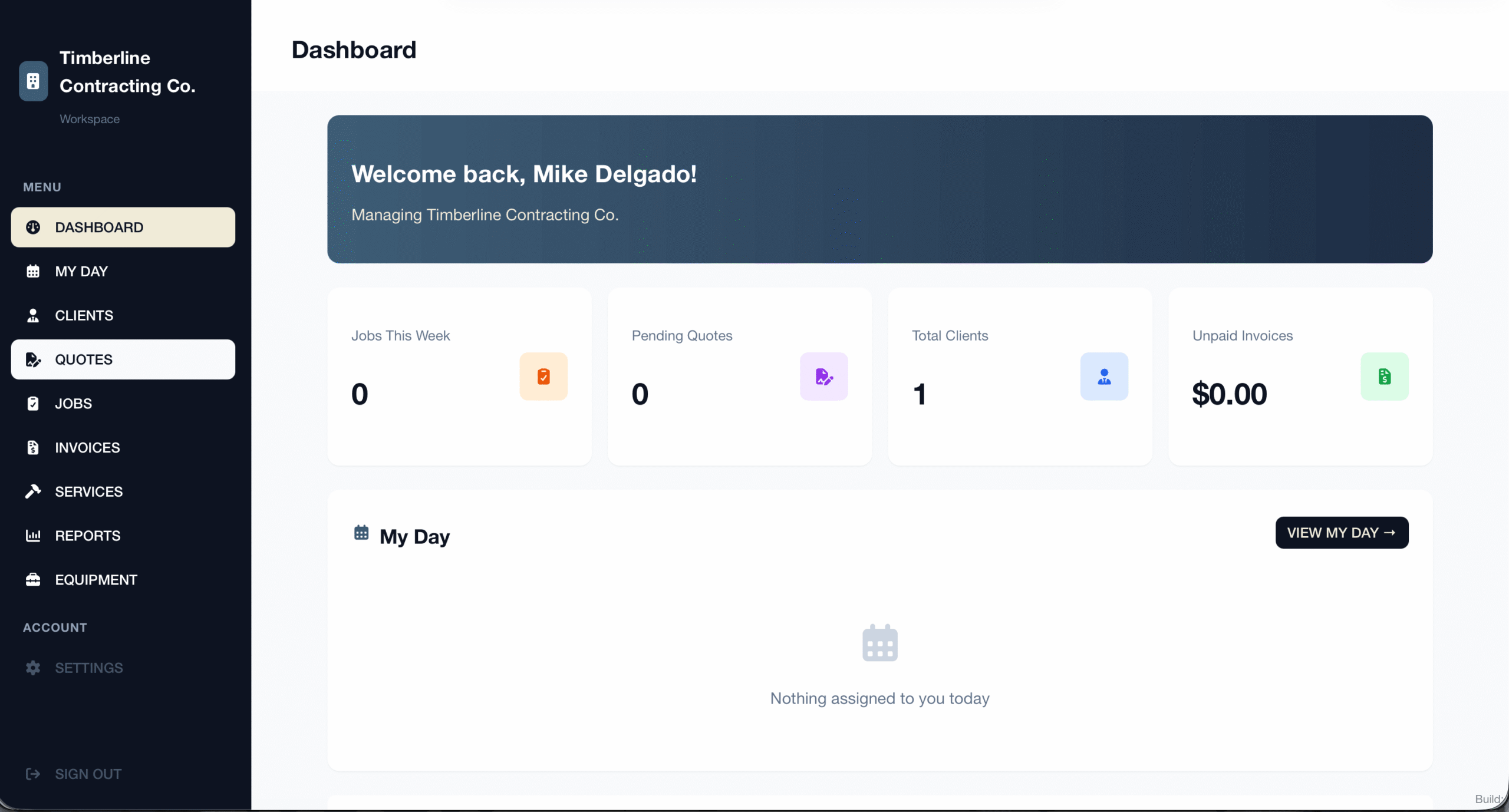
1 - Open Quote
Select Quotes from the left navigation menu. If you customized this label, select the name displayed in your account.
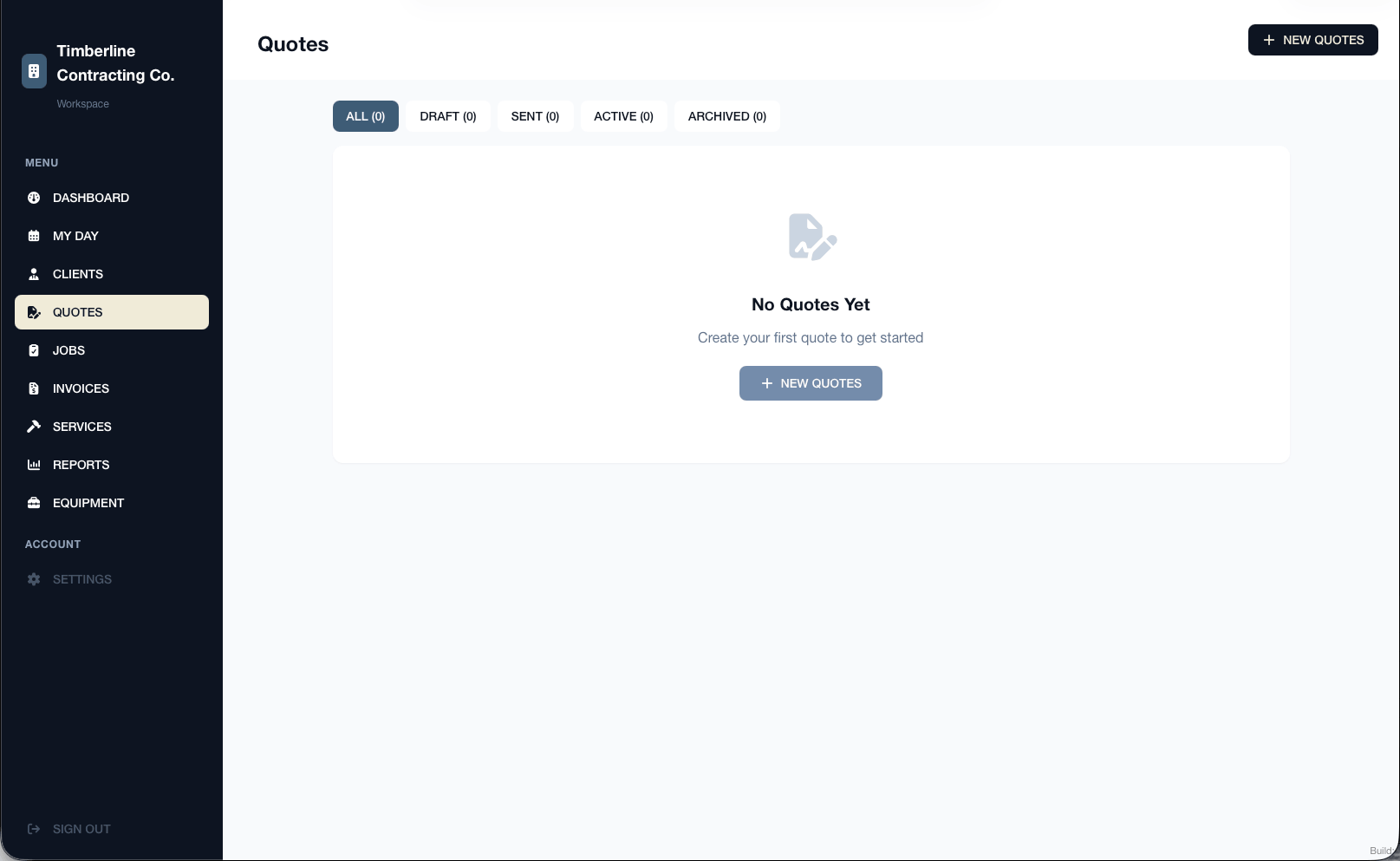
2 - Select New Quote
Select New Quote in the upper-right corner. If you have not created any quotes yet, you can also use the button in the center of the page.
3 - Choose a Client Type
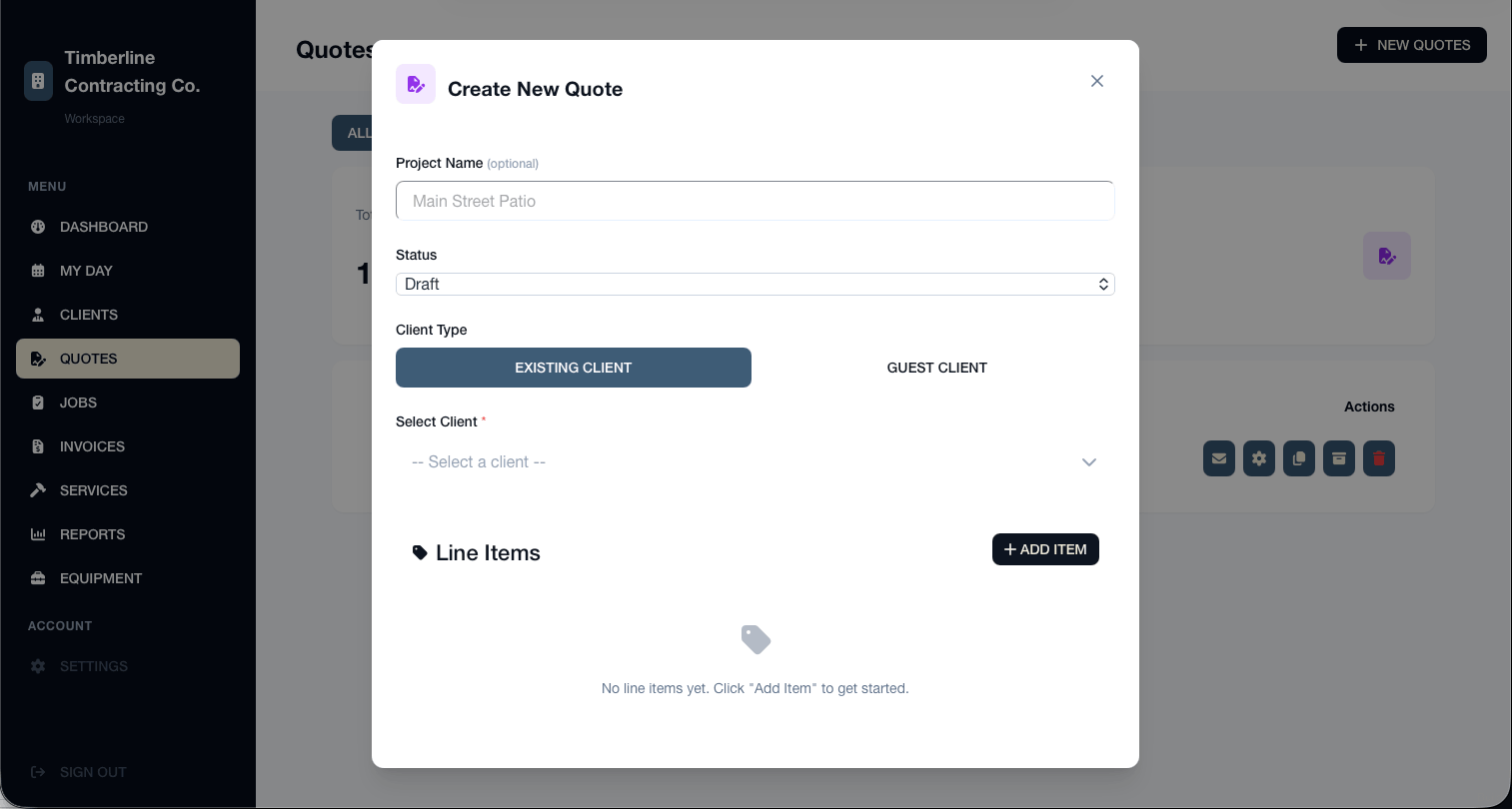
Choose whether the quote is for an Existing Client or a Guest Client.
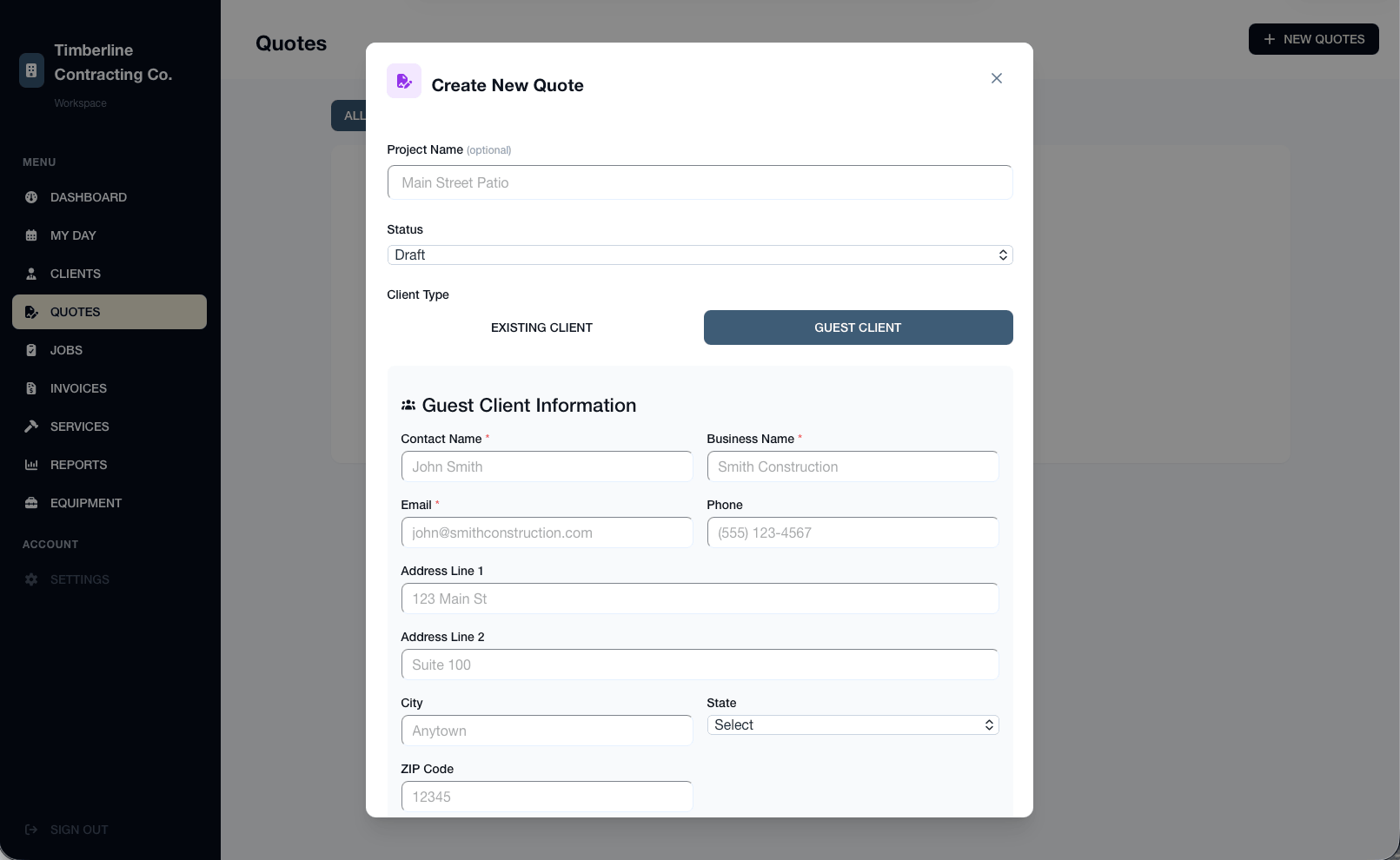
Select Existing Client to use contact information already saved in WorkProject HQ. Select Guest Client when you want to create a quote without adding the customer to your client list.
You can also enter an optional project title to make the quote easier to identify later.
4 - Select or enter the client
If you selected Existing Client, choose the customer from your saved client list. Their contact information will be added to the quote automatically.
If you selected Guest Client, enter the customer’s name and contact information manually.
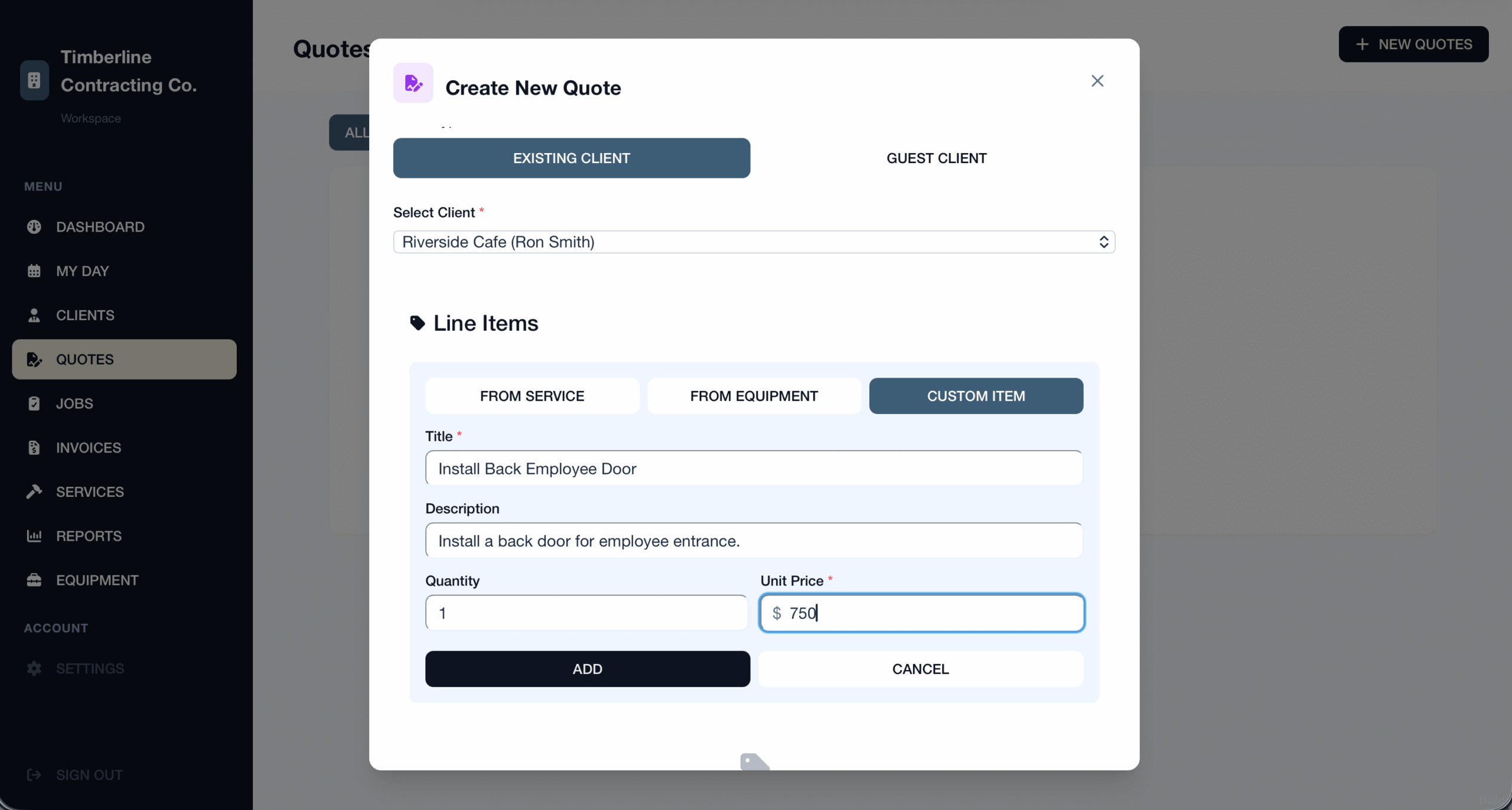
5 - Add the work and pricing
Add the products or services included in the quote. You can select a saved service or equipment item, or choose Custom Item to enter a description and price manually.
In this example, we are using a custom item to describe the work and enter its price.
6 - Add optional details
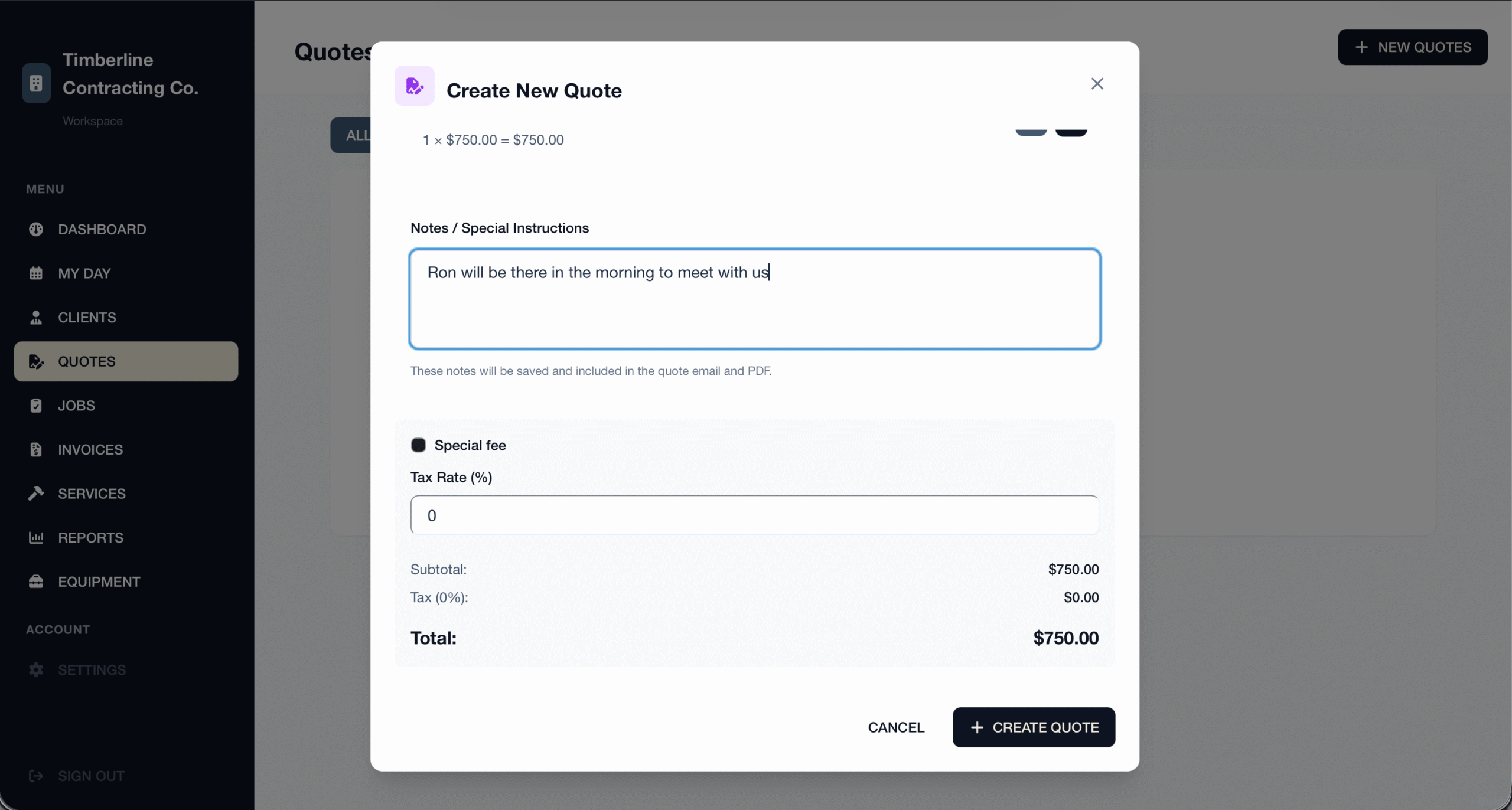
Add any additional notes, project details, terms, or special pricing the customer should know about. If you do not need to add anything else, you can leave this section blank.
7 - Click Create Quote
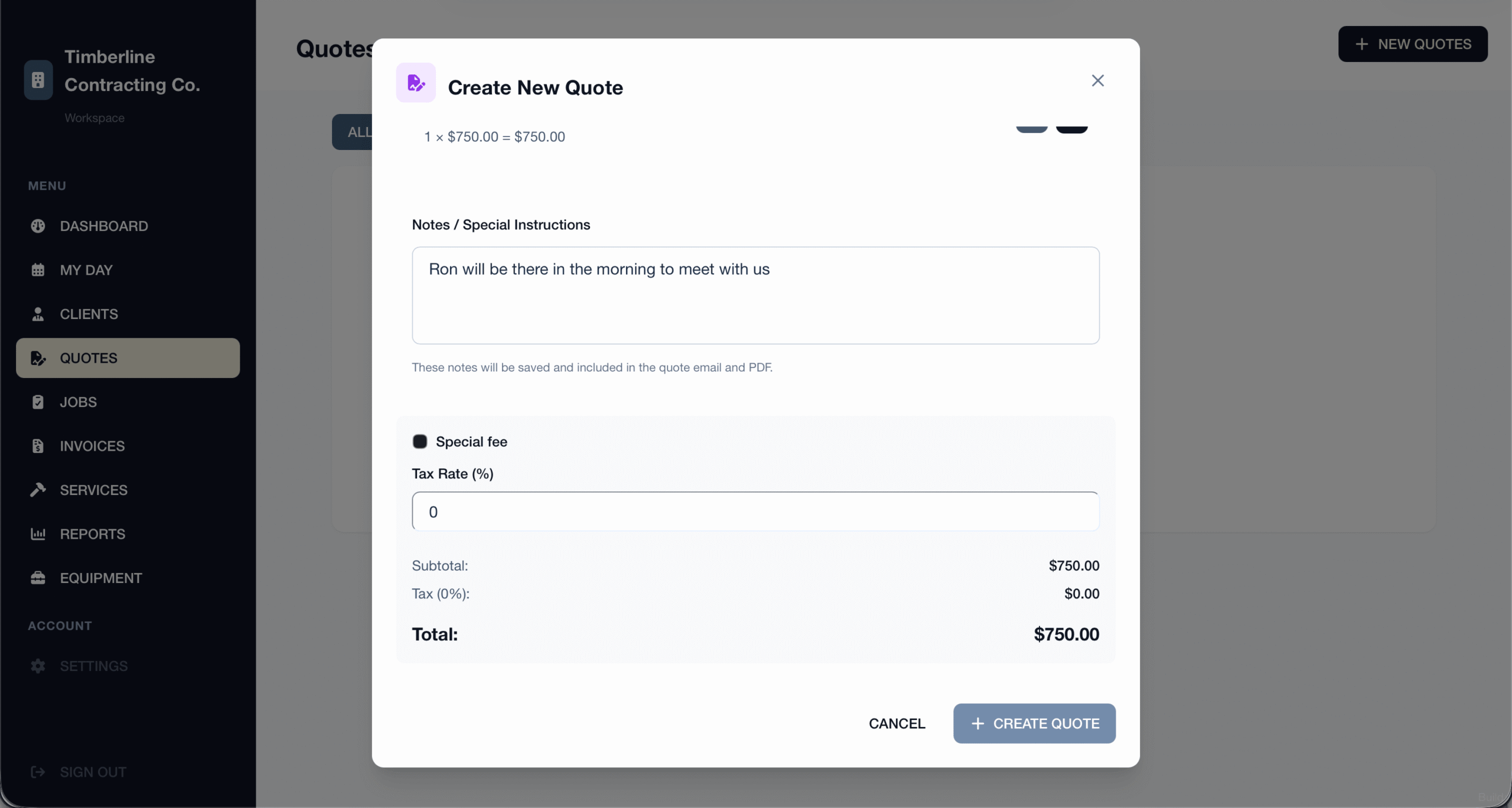
Review the customer information, line items, and total. When everything is correct, select Create Quote.
The quote will be saved as a draft until you send it.
8 - Send the quote to your customer
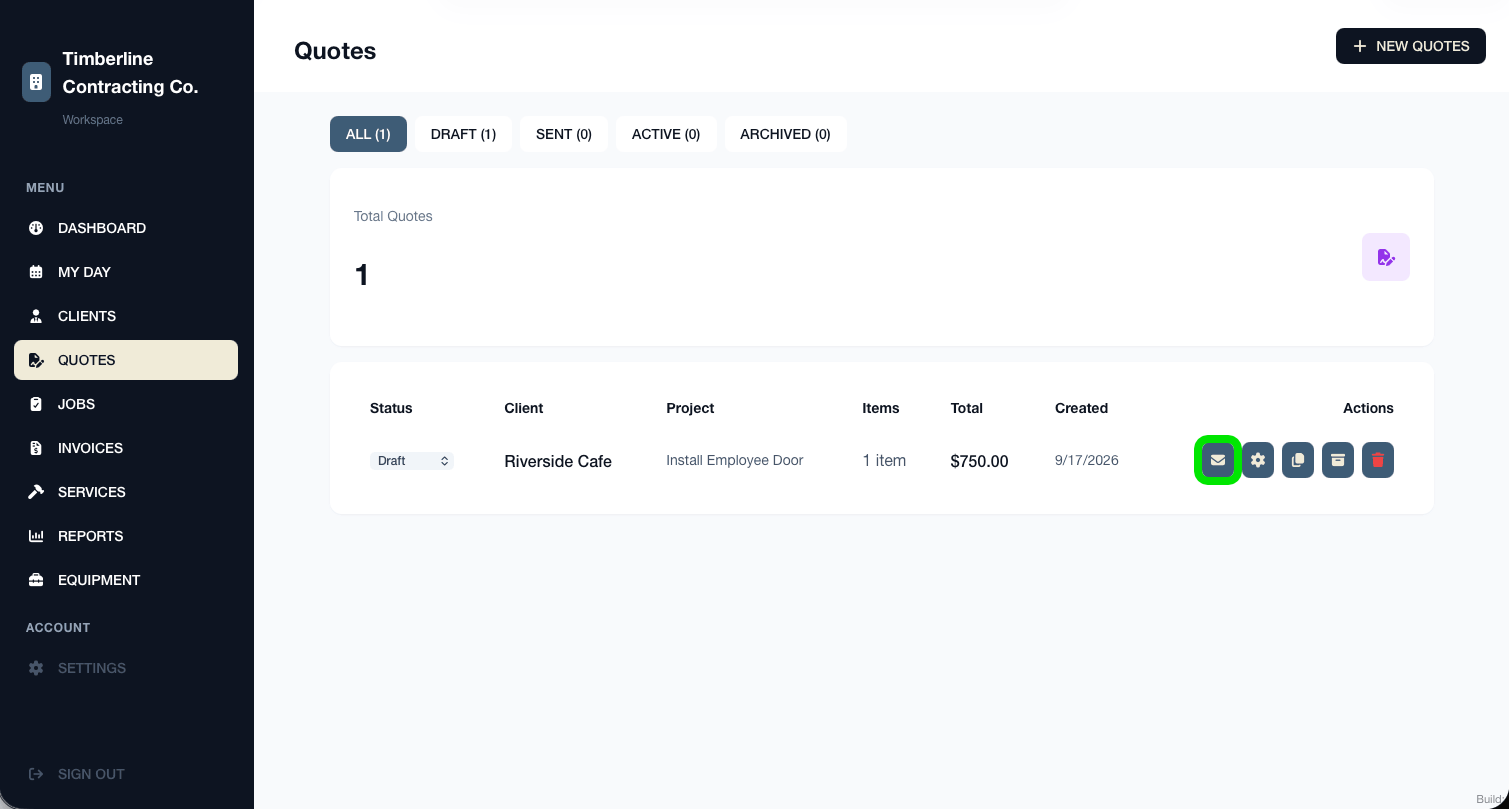
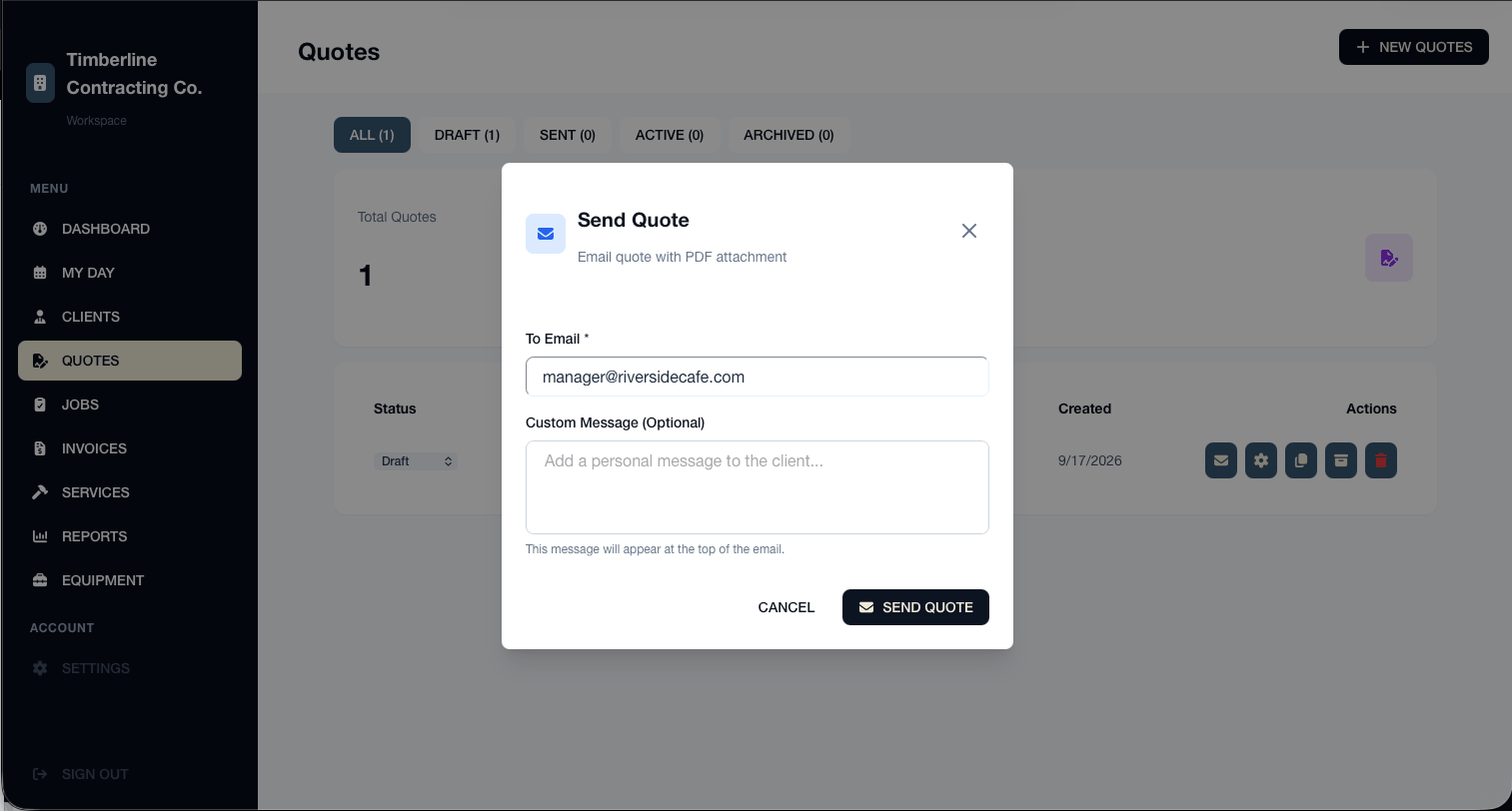
Locate the quote and select the envelope icon under Actions. This opens the Send Quote window.
9 - Review and send the email
Confirm the customer’s email address. For saved clients, WorkProject HQ automatically fills in the email address on file, but you can change it if needed.
You can also add an optional personal message. When you are ready, select Send Quote. The customer will receive an email with the quote attached as a PDF.
Your project quote has been created and emailed to the customer. You can return to the Quotes page to view its status, make changes, or create another quote.